

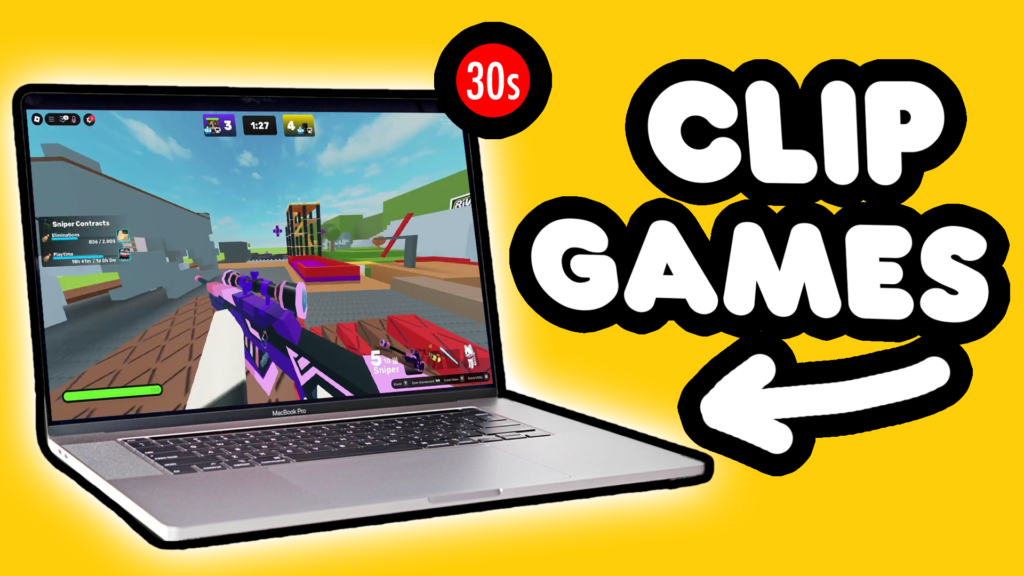
Whether you are hitting crisp headshots or pulling off an impossible clutch, capturing your best gaming moments on a Mac has historically been a massive headache. Today, we are breaking down exactly how to clip your gameplay on macOS in 2026 without destroying your frame rate or lagging your system.
Let’s get straight into it!
Method 1: The Built-In Way (Quick but Basic)
If you need a recording right this second and don’t want to download any extra software, macOS actually has a native screen recorder built right into the operating system.
- How to use it: Hit
Command+Shift+5on your keyboard, select your recording options, and hit record.
The Catch
While it works in a pinch, there are two major problems for gamers:
- No Internal Audio: It doesn’t capture your internal game audio natively without annoying, messy third-party virtual cable workarounds.
- It’s a Constant Recording: It records your entire session from start to finish instead of just saving the last 30 seconds of action. You end up with massive, multi-gigabyte files that you have to manually sift through later. It’s not a true gaming “clip.”
The Ultimate Solution: ClipMac
If you want a real, lightweight clipping tool that just works without the headache, ClipMac is the gold standard for macOS gaming in 2026.
Unlike apps like OBS—which force you to deal with complicated virtual audio drivers just to get your game sound working—ClipMac gets you up and running instantly. You just download the app, grant it quick system permissions, and it automatically hooks into your Mac’s audio stack.
Once installed, the workflow is incredibly seamless:
- Background Capturing: It runs completely quietly in the background without eating up your RAM or causing your in-game frames-per-second (FPS) to drop.
- Instant Replay: The second you hit an insane play, just tap
Command+Option+C. ClipMac instantly saves the last 30 seconds of your screen with perfect, high-quality internal audio and crisp 60 FPS video.
Edit and Share in Seconds
ClipMac doesn’t just record your gameplay; it handles your entire workflow from start to finish:
- Built-in Editor: You can instantly trim out the fluff, crop the frame, or adjust the audio levels right inside the app.
- Free Cloud Hosting: You don’t even have to export files to your desktop and clog up your local storage. With one click, ClipMac generates a private share link for your friends.
- Direct Uploads: You can instantly upload your finished clip directly to TikTok, YouTube Shorts, or Discord. It’s easily the fastest way to turn a raw gameplay moment into a viral short on Mac.
If you are ready to completely change how you share your Mac gaming clips and edits, head over to the ClipMac website and click on the “Download for Mac” button to grab your download today!