
Playing Roblox with a controller can make platformers snappier, racers smoother, and action games way more comfortable. The good news: in 2026, Windows handles most modern gamepads with little fuss. Whether you’ve got an Xbox One or Series X|S controller, a PlayStation 4/5 controller, or a Nintendo Switch Pro Controller, you can be up and running in minutes—wired or wireless.
Before You Start (Quick Prep)
- Supported controllers: Xbox One / Series X|S, DualShock 4 (PS4), DualSense (PS5), Nintendo Switch Pro Controller.
- Cables:
- Xbox One: Micro-USB · Xbox Series X|S: USB-C
- PS4: Micro-USB · PS5: USB-C
- Switch Pro: USB-C
- Windows: Keep Windows Update current. If you have an Xbox controller, install the free Xbox Accessories app (Microsoft Store) to update controller firmware.
Method 1 — Plug-and-Play (USB Wired)
- Connect the cable from controller to a USB port on your PC.
- Launch Roblox and open a controller-friendly game. You should see on-screen prompts (A/B/X/Y or Cross/Circle/etc.).
Why use USB? Lowest latency, most stable, powers the controller, and usually enables headset audio on Xbox/PS controllers.
Method 2 — Bluetooth (Wireless)
A) Put your controller in pairing mode
- Xbox One/Series X|S: Hold the Pair button (near the USB port) until the Xbox logo rapidly blinks.
- PS4 (DualShock 4): Hold Share + PS until the light bar flashes.
- PS5 (DualSense): Hold Create + PS until the light bar flashes.
- Switch Pro: Hold the small Sync button on top until LEDs cycle.
B) Pair in Windows 11/10
- Settings → Bluetooth & devices → Add device → Bluetooth.
- Choose your controller from the list (e.g., Wireless Controller, Xbox Wireless Controller, Pro Controller).
- Wait for Connected status.
C) Verify & play
- Open
joy.cplto test buttons/axes. - Launch Roblox; supported games will accept input automatically.
Notes:
- Bluetooth can add a bit of latency and may not carry headset audio for some controllers.
- Old Bluetooth adapters can be flaky—update drivers or consider the Xbox Wireless Adapter (next section) if you’re using Xbox controllers.
Method 3 — Xbox Wireless Adapter for Windows (Best for Xbox Controllers)
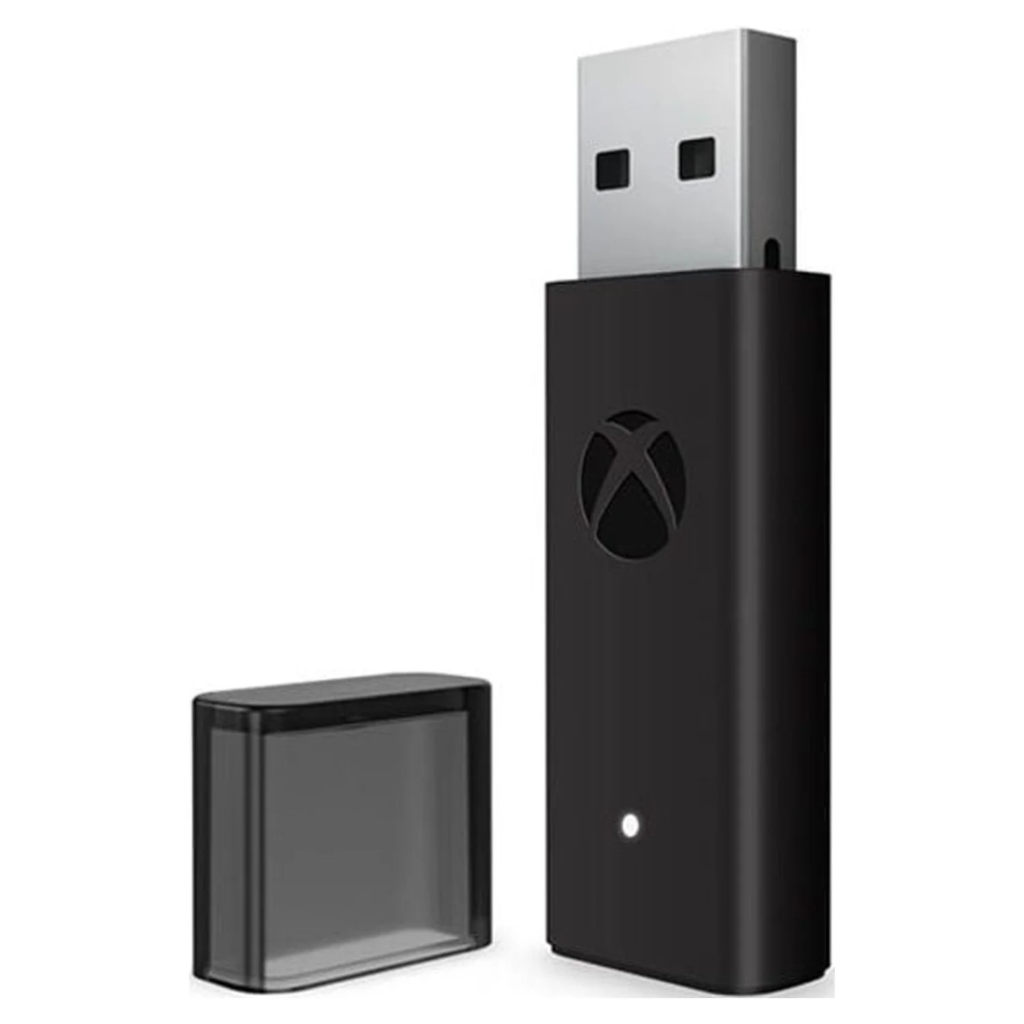
- Plug the adapter into a USB port (use the included USB extension if needed for better signal).
- Press the adapter’s button (LED starts flashing).
- Hold the controller’s Pair button until the Xbox logo flashes, then goes solid.
- Test in
joy.cpl, then jump into Roblox.
Why this adapter? Lower latency than Bluetooth, stronger connection, and better support for extras (like audio through the controller’s jack).
Optional: Improve Detection for PlayStation / Switch Pro
Some PC games only listen for XInput (the Xbox standard). If a specific Roblox experience doesn’t respond to your PS4/PS5 or Switch Pro controller, you can map it to XInput using tools such as Steam Input (by adding the Roblox Player as a non-Steam game) or other remappers. Keep profiles simple: map face buttons and sticks 1:1 to an Xbox layout for the most compatibility.
Quick Troubleshooting
- Nothing happens in Roblox: Try a different experience—some don’t implement controller input.
- Buttons feel swapped (Switch Pro): Nintendo uses A/B and X/Y opposite the Xbox layout; remap in your tool of choice if it bothers you.
- Random disconnects: Use a rear motherboard USB port or a better USB extension; keep wireless adapters away from metal cases and 2.4 GHz dongles.
- Lag on Bluetooth: Switch to USB or (for Xbox) the Xbox Wireless Adapter.
- Firmware: Update your controller (Xbox via Xbox Accessories; PlayStation via Sony’s firmware updater or a PS5 console).
FAQ
1) Does the Xbox Wireless Adapter work with Series X|S and Xbox 360 controllers?
It works with Xbox One and Series X|S controllers. It does not work with Xbox 360 controllers; those require the older Xbox 360 Wireless Receiver.
2) Can I use Joy-Cons with Roblox?
Windows sees each Joy-Con as a separate controller over Bluetooth, which is awkward. It’s possible with extra software, but not recommended. A Switch Pro Controller is far easier.
3) Why does my PS4/PS5 controller work in one experience but not another?
Controller support is implemented per experience. Some creators target keyboard/mouse only. When that happens, remapping to XInput (e.g., via Steam Input) often helps.
4) What gives the lowest input lag overall?
Typically USB wired is best, followed by Xbox Wireless Adapter, then modern Bluetooth. The gap is small on good hardware, but competitive players still prefer wired.
5) Can I use my headset through the controller on PC?
Often yes with USB or the Xbox Wireless Adapter for Xbox controllers. Plain Bluetooth on PS/Switch controllers usually won’t carry mic audio reliably on Windows.