
Roblox running slow on your MacBook? Whether you’re dealing with low FPS, stutters, or just plain lag, this quick guide will help you boost performance instantly—no advanced tech skills required.
Step 1: Reduce Texture Load in Roblox
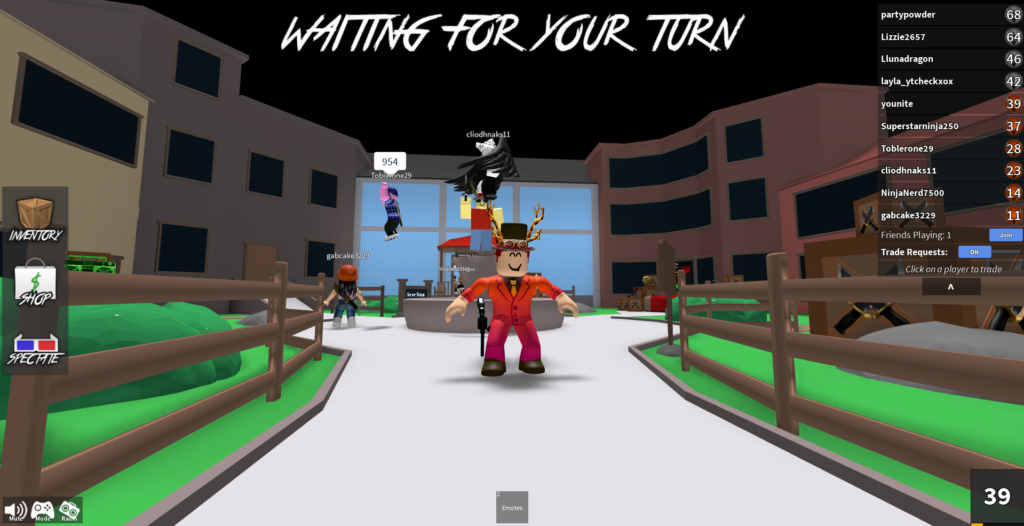
This method helps increase FPS by reducing the number of textures Roblox has to load.
- Right-click the Roblox icon in your dock (taskbar).
- Select Options > Show in Finder.
- In Finder, right-click on the Roblox app and select Show Package Contents.
- Navigate to:
Contents→Resources→platformcontent→pc→textures
- Once you’re in the
texturesfolder, delete all the files inside. - Next, make sure you empty the bin where all the files are located.
💡 Don’t worry—if you ever want to reverse this, just reinstall Roblox.
Step 2: Kill Background Processes
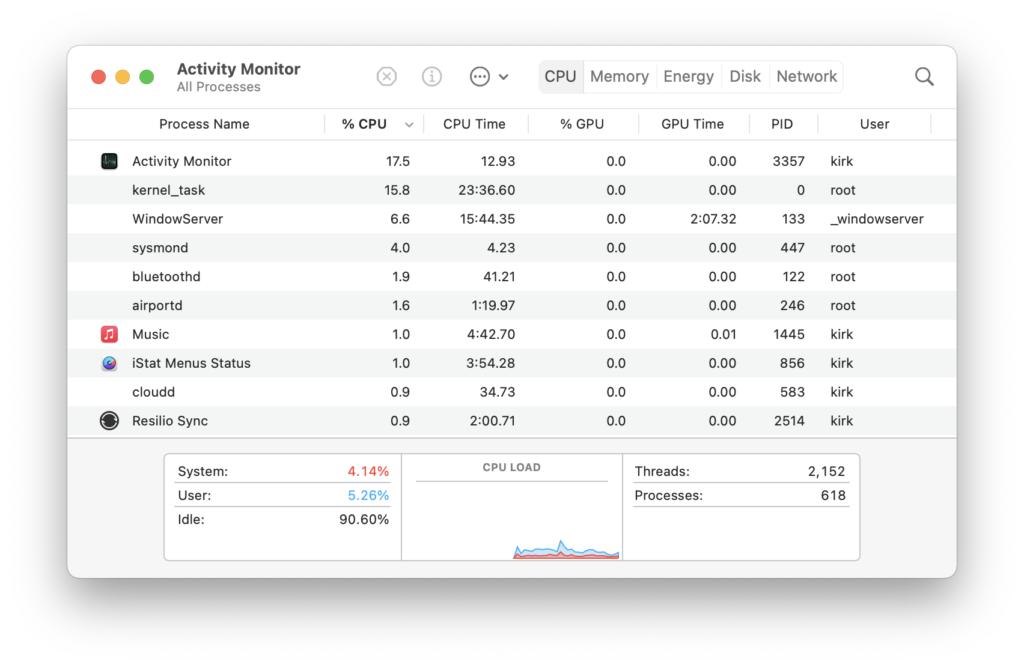
If you’re still experiencing lag, the issue might be caused by other apps eating up system resources.
- Open Activity Monitor on your Mac.
- Look for any apps using a lot of CPU or Memory—like Google Chrome or Spotify.
- Once you’re in a Roblox game, quit or force quit these unnecessary processes to free up performance.